
Engine Simulator Performance Tuning
Stabilize RT/DT near 70, pick a sane simulation frequency, and stop crackle before you chase script bugs.
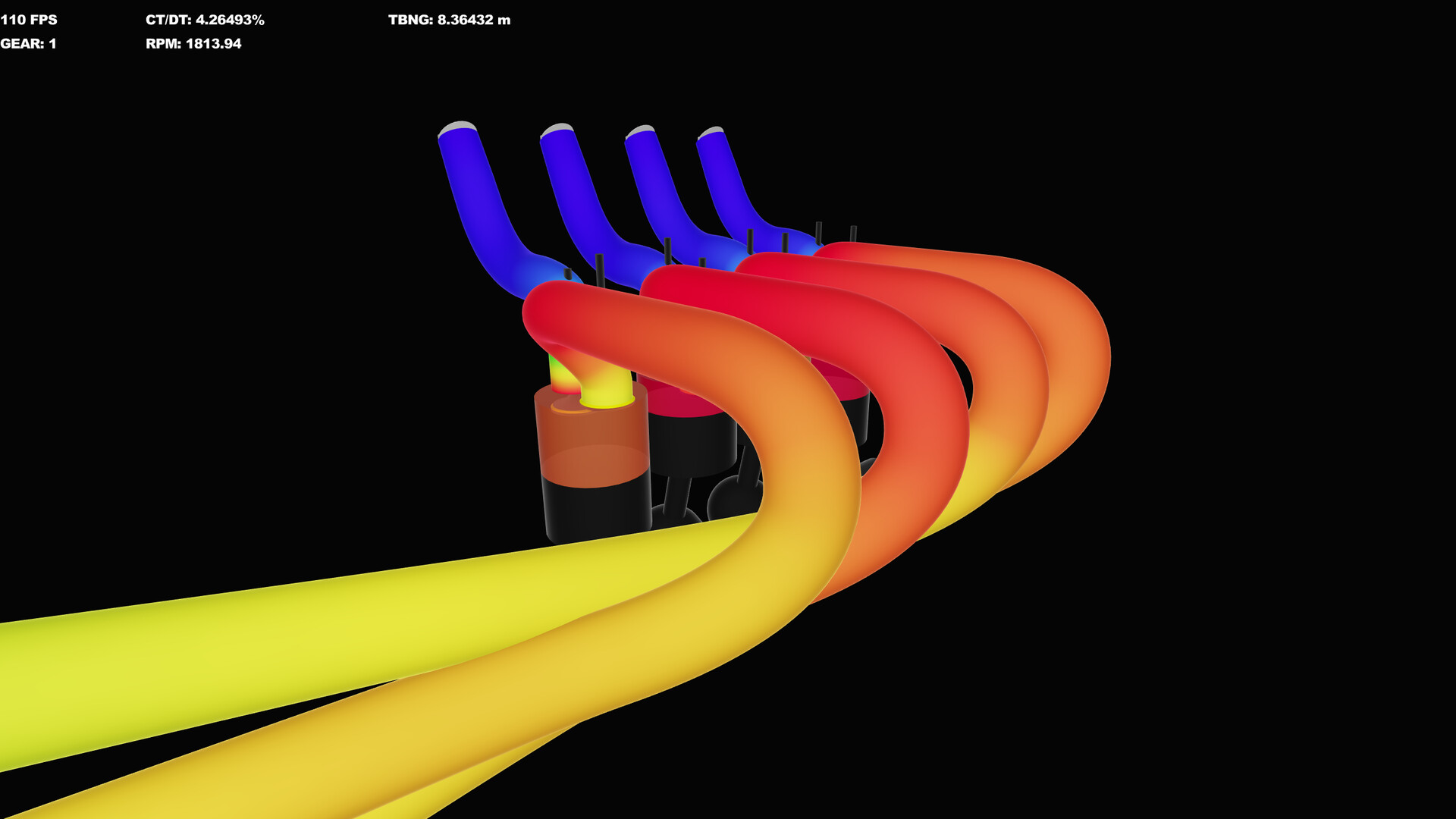
Engine Simulator is unusual: the soundtrack is computed from the same simulation that moves the pistons. When your CPU falls behind, you do not only drop frames—you starve the audio buffer. Performance tuning is therefore part of “playing” the game, not an optional graphics menu. This page is the Community Edition field manual for RT/DT, simulation frequency, time warp, and CPU hygiene. Steam builds are adding clearer profilers and a rewritten core, but the instincts here still apply.
The only gauge that matters first: RT/DT
RT/DT compares real elapsed time to simulation delta time. Community tutorials treat roughly 70 as the ideal operating region. Sustained values above about 80 correlate with audible distortion and hitching.
Interpretation habits:
- Glance at RT/DT whenever you Load Script or press Enter after edits.
- Heavier engines (high cylinder counts, complex vehicles) push the gauge up—expect to retune.
- Do not evaluate cam changes while RT/DT is screaming; you will tune noise, not physics.
Simulation frequency (N + scroll)
Simulation frequency is the internal tickrate of the engine model. It appears on the frequency gauge. Hold N and scroll to change it.
Lower frequency → less CPU work → RT/DT improves → audio buffer stays fed. Raise frequency only when RT/DT has headroom and you want finer resolution.
Important: the “right” frequency is per engine and per machine. A laptop that loves a single-cylinder utility engine may need a much lower rate for a V12. After every serious catalog download, repeat the RT/DT dance.
Time warp keys 1–5
Time warp accelerates simulated time relative to wall clocks. It is perfect for waiting through boring settles and terrible for diagnosing crackle. If audio falls apart, return to a low warp preset before touching frequency again. Mixing max warp, max frequency, and a catalog monster engine is how people conclude their PC “cannot run anything.”
CPU and OS hygiene
- Close browsers with dozens of tabs, game launchers, and recording software while iterating.
- Prefer a plugged-in power plan on laptops; thermal throttling shows up as rising RT/DT mid-session.
- Keep the sim on a discrete GPU machine when possible—Steam’s listed minimums (Windows 10, roughly i7-8700K and GTX 1060 class) set expectations for the commercial build. CE can limp on less if you cut frequency aggressively. Details: System Requirements.
- Avoid unpacking CE onto struggling network drives.
Audio-side levers (after RT/DT is sane)
Once the clock is stable, use the scroll chords from Controls:
- Z — volume
- X — convolution level
- C — high-frequency gain
- V / B — noise layers
These shape tone; they do not fix buffer underruns. If you need cleaner-than-realtime captures, use offline/high-quality rendering ideas in Audio Export instead of forcing an impossible live frequency.
Editor-era performance lessons
Public Steam development videos highlight CPU breakdown graphs, real-time factor plots, and the relationship between simulation rate and audio buffer health. When the real-time factor dips below one, the CPU cannot fill audio in time—exactly the failure mode CE players hear as crackle. The commercial direction is multithreaded core work shared with related projects, aiming for more consistent quality across PCs. Track that story on Steam Status; treat CE as the legacy sandbox noted in Community Edition.
A practical tuning checklist
- Boot stock engine → set RT/DT ~70 with N + scroll.
- Load your target script → wait for settle → retune frequency.
- Disable high time warp.
- Start engine (A / S) and verify idle audio continuity.
- Only then open throttle or enable the dyno (Dyno Testing).
- After script edits that add parts, assume frequency must drop until proven otherwise.
When the engine is the problem
Not every hitch is CPU. A numerically unstable .mr can spike cost or explode. Bisect by returning to a known-good demo engine under assets/engines/atg-video-*. If demos are smooth and the catalog file is not, fix or replace the script (Load Community Engines, Create Engines).
Session profiles you can copy
Listening session: lowest warp, RT/DT prioritized, modest convolution, single engine.
Tuning session: slightly more frequency headroom if available, Enter-reload loop, dyno holds at few RPM points.
Showcase recording: consider offline/high-quality paths; do not trust a live RT/DT-85 pull for a portfolio clip.
Related pages
- Getting Started — first launch order of operations
- Controls — full key reference
- Guides Hub — all how-tos
- Updates — CE vs Steam performance trajectory
Own your frequency knob and Engine Simulator becomes predictable. Ignore RT/DT and every community engine will feel broken—usually unfairly.
Frequently Asked Questions
Quick answers about setup, controls, dyno testing, and builds.
What RT/DT value should I aim for?
About 70 is the community ideal. Sustained readings above roughly 80 usually mean audible artifacts and hitching.
How do I change simulation frequency?
Hold N and scroll the mouse wheel. Lower the frequency when RT/DT is too high; raise it only when you have headroom.
Why did performance get worse after loading a new engine?
Different scripts have different CPU costs. Retune frequency after every heavy Load Script, and close background apps competing for the CPU.
Does time warp affect performance?
High time warp increases how much simulated work you ask for per wall-clock second. Turn it down while diagnosing audio issues.
Will the Steam version need the same manual frequency fiddling?
Steam development is improving profiling and core performance, but understanding real-time factor vs audio buffers will remain useful.