
Engine Simulator Controls Reference
Every important Community Edition keybind in one place, with habits that keep audio clean.
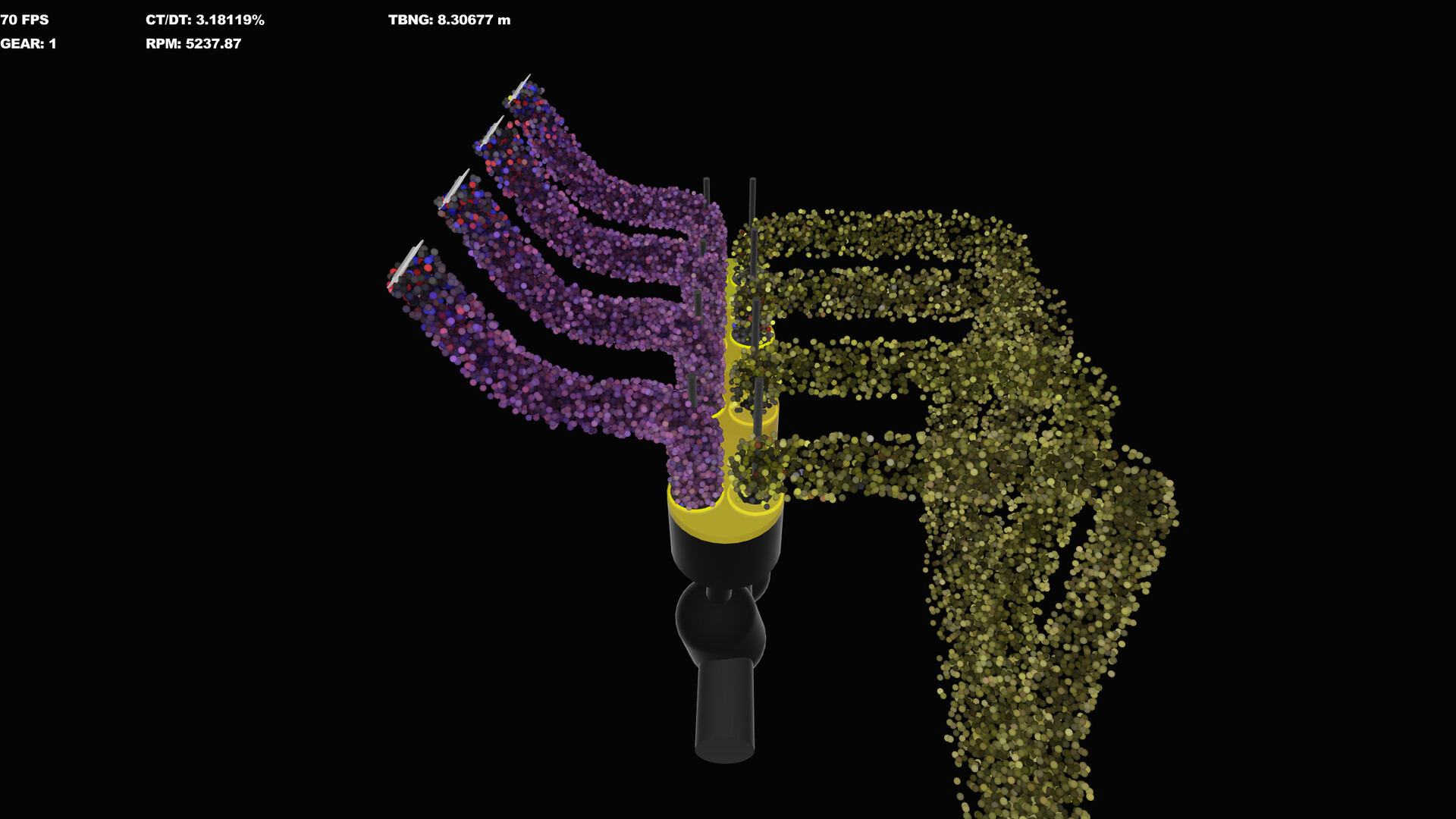
Engine Simulator’s Community Edition UI is intentionally sparse. Almost everything important is a key or a key-plus-scroll chord. Print this page or keep it on a second monitor for your first few hours. Bindings below match the widely documented CE control set used with recent builds (including notes around v0.1.12a–v0.1.14a). The Steam product may evolve the interface—especially with the new editor—but these habits still teach how the simulation expects you to drive it.
If you have not installed yet, finish Getting Started first.
Engine run controls
| Input | Action |
|---|---|
| A | Toggle ignition |
| S | Hold for starter motor |
| Q / W / E / R | Step throttle positions |
| Space + scroll | Fine throttle adjustment |
| Enter | Reload the current engine script |
| Esc | Exit the application |
| F | Toggle fullscreen |
Ignition tip: Enable ignition with A before you hold S. If the engine floods or stalls after a botched start, close the throttle, wait a moment, and try again with less throttle. Fine control with Space-scroll beats slamming R on fragile idle tunes.
Dynamometer and RPM hold
| Input | Action |
|---|---|
| D | Enable / disable dynamometer |
| H | Enable RPM hold (needs dyno active to bite) |
| G + scroll | Change hold / dyno target speed |
| I | Show dyno stats in the information panel |
RPM hold alone does nothing obvious until the dyno is on. Typical flow: set a target with G + scroll, press H, press D, then open throttle and read power/torque. Deep procedure lives in Dyno Testing.
Vehicle and driveline
| Input | Action |
|---|---|
| Shift | Clutch |
| Up arrow | Upshift |
| Down arrow | Downshift |
| . (period) | Brake |
Some builds document holding Space with Shift to ease the clutch in slowly—useful when a high-torque script stalls the virtual driveline. Treat gear changes like a real manual: clutch in, shift, feed throttle, clutch out. The simulation will punish clutch dumps on peaky engines. For launch drills, clutch-pressure holds (Y with T / U), and vehicle-vs-dyno context, follow Vehicle Mode.
Audio and view tweaks
| Input | Action |
|---|---|
| Z + scroll | Master volume |
| X + scroll | Convolution level |
| C + scroll | High-frequency gain |
| V + scroll | Low-frequency noise |
| B + scroll | High-frequency noise |
| M / , | Increase / decrease view layer |
| Tab | Change screen / panel focus (where supported) |
Synthesized audio is the product’s signature. Raise volume only after RT/DT is stable; boosting FX on an overloaded CPU just advertises crackle. For capturing cleaner-than-realtime samples, see Audio Export.
Performance and time warp
| Input | Action |
|---|---|
| N + scroll | Simulation frequency (tickrate) |
| 1 / 2 / 3 / 4 / 5 | Simulation time warp presets |
Watch RT/DT. Target roughly 70. Above ~80, expect audio artifacts. Lower frequency with N + scroll when you load a heavier engine. Time warp is great for waiting on temperatures or long dyno settles—turn it down before critical listening. Full strategy: Performance Tuning.
Script workflow keys you will use constantly
- Load Script (UI button): open a community
.mrwithout rewritingmain.mrwhen the file already callsrun(...)/set_engine. - Enter: reload after you save edits in an external editor—essential while iterating cams or throttle bodies.
- Theme loading (UI): switch unit themes (for example metric) via Load Theme when available.
Pair these with Load Community Engines and Create Engines.
Recommended learning drills
- Idle drill — Start the stock engine, hold a steady idle with Space-scroll only, no stepped QWER keys.
- Blip drill — From idle, blip to a mid throttle and back without stalling; listen for synthesized tip-in.
- Dyno drill — Enable hold + dyno, park at 3000 RPM, note torque, then step 500 RPM at a time.
- Frequency drill — Intentionally raise frequency until RT/DT breaks 80, then recover with N-scroll so you recognize the sound of overload.
- Reload drill — Change a harmless comment or theme, hit Enter, confirm the engine returns sanely.
Common mistakes
- Holding starter with ignition off.
- Enabling RPM hold but forgetting D.
- Judging an engine while time warp is high and RT/DT is redlining.
- Using only QWER throttle and never learning Space-scroll fine control.
- Editing
main.mrwhile also Load Script-ing a conflicting file and losing track of which definition is live.
Accessibility and hardware notes
A mouse with a reliable scroll wheel matters more here than in most games. Laptop precision-touch scroll can feel mushy for G/N/Z chords—borrow a basic USB mouse if you can. Keyboard localization rarely remaps these letters in CE documentation; if a key seems dead, confirm focus is on the sim window and that you are not in a text field.
Minimum hardware expectations and Steam’s listed specs are summarized in System Requirements. Controllers are not the primary CE interface—keyboard plus scroll is the designed loop.
How controls connect to the rest of the wiki
Once chords are muscle memory, spend your attention on models: compare layouts on the Best Engines Hub, pull numbers in Dyno Testing, and keep CE vs Steam expectations straight via Updates. Official communities and downloads sit on Links.
Master the table above and the simulator stops feeling cryptic. The remaining difficulty is honest physics and CPU budget—which is exactly what Engine Simulator is about.
Frequently Asked Questions
Quick answers about setup, controls, dyno testing, and builds.
How do I adjust throttle precisely?
Hold Space and scroll the mouse wheel. Use Q/W/E/R for coarse steps when you need to jump between known openings.
Why does RPM hold do nothing?
Press H, then also enable the dynamometer with D. Adjust the target with G + scroll and watch the dyno speed gauge.
Which keys fix crackling audio?
Hold N and scroll down to lower simulation frequency until RT/DT is near 70. Also reduce time warp and close heavy background apps.
How do I reload after editing a script?
Save the file in your text editor, focus Engine Simulator, and press Enter. Use Load Script when switching to a different .mr file.
Will Steam use the same keybinds?
Expect evolution—especially with the new editor UI—but ignition, dyno, and performance concepts transfer. Re-check patch notes after release.