
Engine Simulator Audio Export
Move beyond crackly realtime captures with stable sessions and higher-quality render thinking.
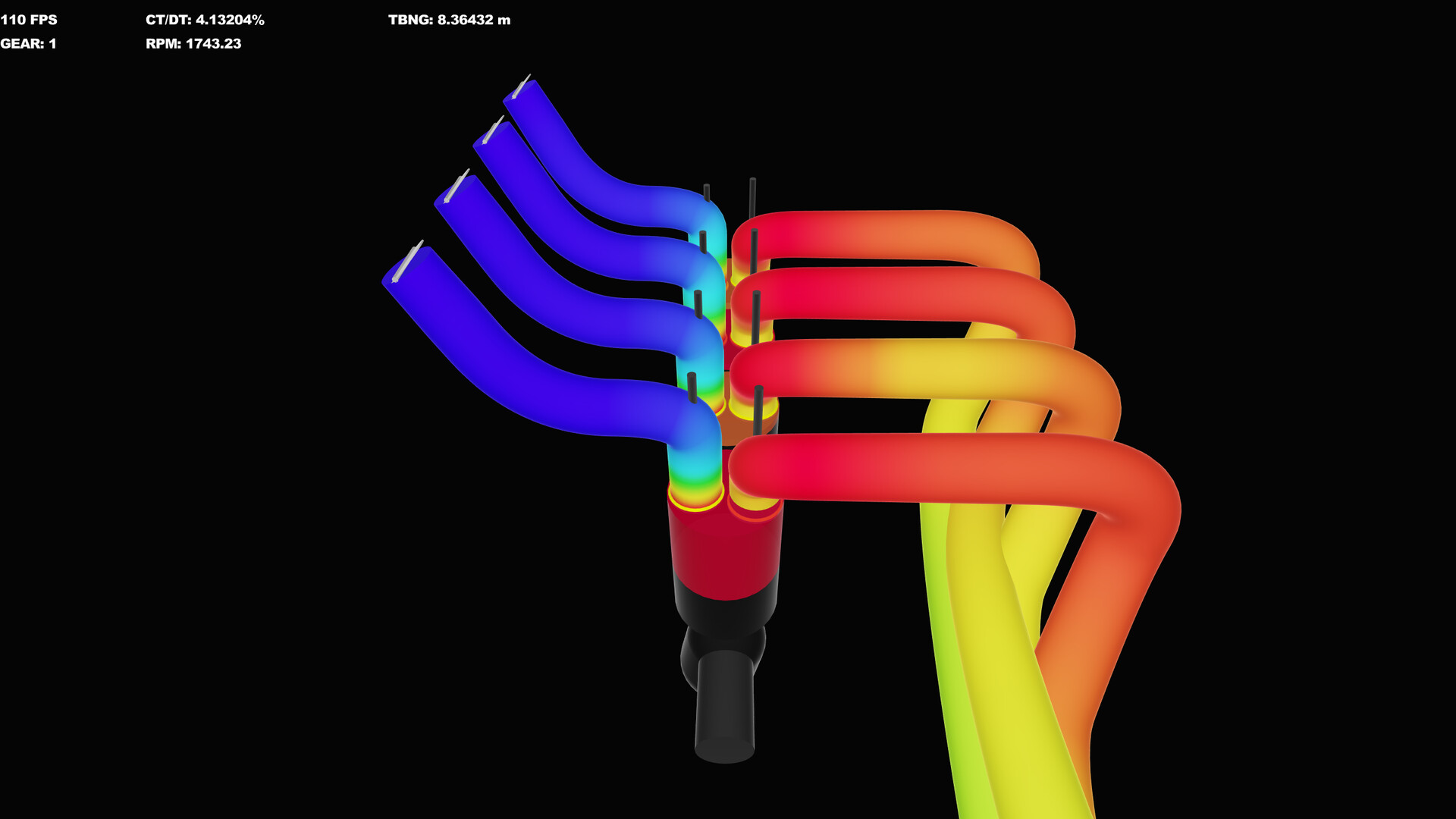
Engine Simulator’s hook is honest synthesized engine audio—not spliced loops. That ambition collides with CPU reality: the nicest catalog V8 on a mid PC may never feed a realtime buffer at the quality you want for a YouTube short. This page explains why, how to capture cleaner sound today on Community Edition, and how the project’s own messaging around higher-than-realtime recording fits your workflow.
Why realtime audio hits a wall
The synthesizer rides on the simulation tick. If RT/DT climbs past the safe band (~70 ideal, trouble near 80+), the audio buffer underruns and you hear breakup. Raising cosmetic FX (convolution, noise layers) on top of an overloaded core makes demos sound worse, not richer. Fix the clock first with Performance Tuning.
Official project communication for the Steam product emphasizes that you can record audio samples at higher quality than realtime would allow, precisely so modest hardware can still enjoy creations via offline rendering rather than fake sample packs. Treat that as a first-class feature direction, not a workaround shame.
Goals for an export session
Decide what you need:
- Reference idle for comparing firing orders
- Throttle blips for content thumbnails’ soundbeds
- Dyno pull synced to RPM hold notes from Dyno Testing
- Layout character clip for arguments on the Best Engines Hub
Each goal wants a stable script, known throttle inputs, and minimal background noise from the OS.
Clean realtime capture habits (CE)
When you must record the live session:
- Load the engine and park RT/DT near 70 before pressing any record button.
- Disable high time warp.
- Set volume with Z + scroll; avoid clipping your Windows mixer afterward.
- Trim convolution/noise (X/C/V/B) to taste only after stability.
- Close browsers, Discord hardware acceleration if needed, and other games.
- Prefer a single consistent microphone-less loopback path (WASAPI loopback, Stereo Mix, or your DAW’s system capture) so you are not recording room noise.
Label files with engine name, CE version, approximate frequency, and whether dyno was enabled. Future you will care.
Offline / high-quality render concept
Think of offline rendering as asking the simulator to compute audio without the realtime deadline. The Steam messaging around higher-quality recorded samples maps to this idea: accept longer wall-clock waits to get buffer-healthy audio even when a live session could not keep up. As the Steam editor and playback tools mature (Steam Status), expect this path to become more obvious in-UI.
On CE, creators often approximate the spirit by:
- Choosing lighter frequency only when live listening, then
- Capturing shorter scripted maneuvers rather than twenty-minute free drives, and
- Re-running the same throttle choreography after a script tweak for A/B audio.
When dedicated offline controls are available in your build, prefer them over stacking OBS plus max settings.
Syncing audio to gameplay video
If you also capture video:
- Record a clapper-style throttle blip at the start for sync.
- Do not rely on time warp footage as truthful transient audio.
- Keep UI clutter readable if teaching Load Script or dyno steps—see Guides.
Ethics and attribution
Community engines belong to their authors. When you publish a sounding clip:
- Credit the script author and catalog listing.
- Note modifications you made.
- Avoid implying Ektorom / AngeTheGreat endorsement—this wiki is fan documentation (Links).
Troubleshooting exports
| Issue | Likely cause | Mitigation |
|---|---|---|
| Crackles in the WAV | Live underrun | Lower frequency; shorten take; use higher-quality/offline path |
| Dull tone | Over-reduced FX / wrong theme expectations | Revisit X/C/V/B after stability |
| Desync with video | Variable lag under load | Clapper blip; shorter clips |
| Different sound after reload | Unsaved .mr or different node | Confirm Enter-reload and file path |
Pipeline example for creators
- Build or load engine (Create Engines, Load Community Engines).
- Dyno-hold a marketing RPM; note torque.
- Capture a 10-second idle + blip with clean buffer health.
- Capture a pull to redline caution with the same frequency settings.
- Publish with hardware notes from System Requirements.
Looking ahead
Steam development videos showcase playback tooling and performance graphs aimed at understanding CPU vs audio buffer health. That is the professional version of what CE players do manually with RT/DT. Wishlist app 2381500 and follow Updates so you know when export UX jumps forward.
Audio export is not a vanity filter—it is how a physics synthesizer becomes shareable art without lying about samples. Stabilize first, capture second, and let offline quality save mid-tier PCs from impossible live rates.
Frequently Asked Questions
Quick answers about setup, controls, dyno testing, and builds.
Why does my recording crackle even though the engine looks fine?
The CPU likely missed audio deadlines. Lower simulation frequency until RT/DT is near 70, reduce time warp, and shorten the take.
What does high-quality or offline rendering mean here?
Computing audio without requiring realtime playback so modest PCs can still produce clean samples. The Steam product highlights this capability explicitly.
Should I max convolution for exports?
Only after the buffer is healthy. FX cannot repair underruns and may hide useful diagnostic detail while tuning.
Can I use catalog engines in my videos?
Credit the authors and describe modifications. Do not claim official affiliation with the developer.
Where do I learn keys for volume and FX?
See the Controls guide for Z/X/C/V/B scroll chords and the rest of the CE keyboard map.